How to start playing
Instructions for the digital games cloud. Windows and Android available.
Download game client
Download and install Chiaki-ng for Windows (build PlayPSCloud for digital games cloud).
Log in to the application
Enter your email and password for your personal account PlayPSCloud.
Launch the game
Select a game from the cloud catalog and click Play. The session and charging start automatically.
Control Settings
On Windows, any gamepads that Chiaki-ng sees are supported (as in a regular build).
DualSense and DualShock adjust automatically. Connection via USB or Bluetooth.
Mouse control is not supported in Chiaki-ng. The keyboard is usually used additionally if the gamepad does not have enough buttons for the DualSense capabilities.
Standard layout:
Xbox One supported. Connect via USB or Microsoft wireless adapter.
Xbox Series X|S is supported. Connect via USB or Microsoft wireless adapter.
Xbox 360 supported (wired or wireless with official PC adapter).
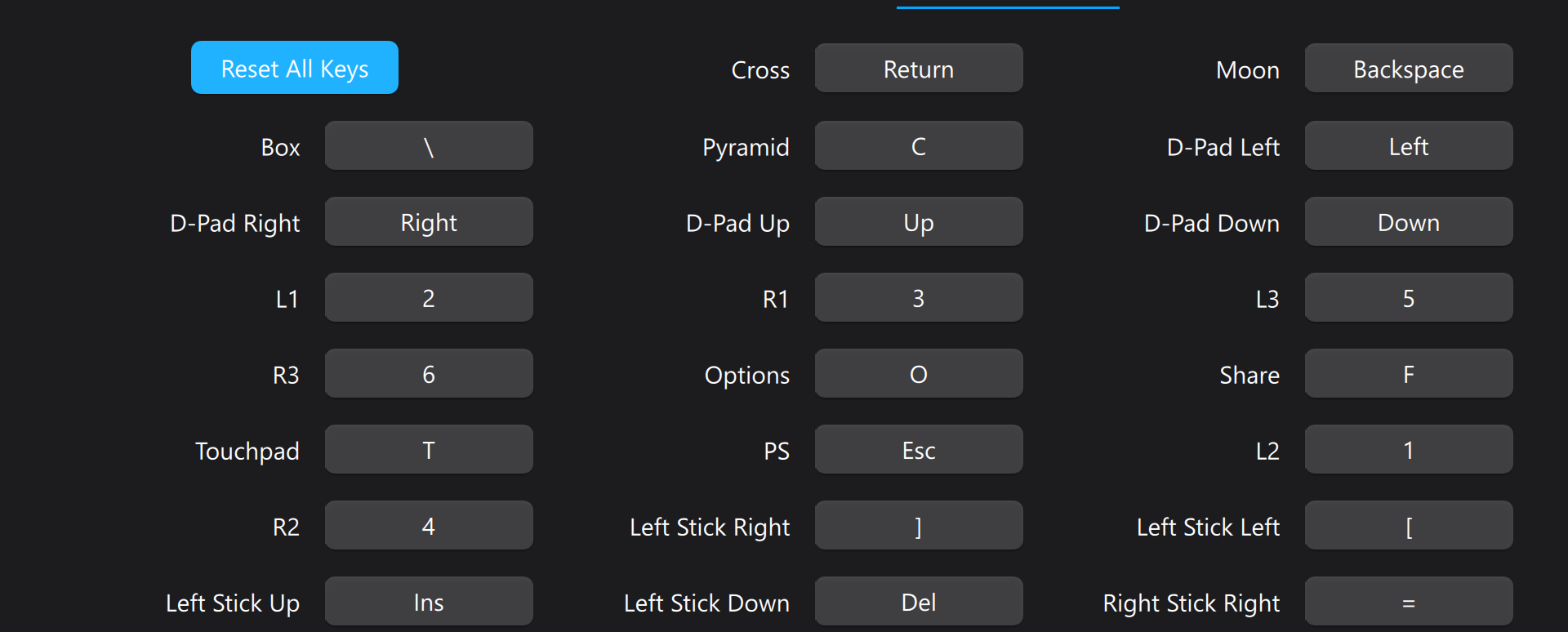
In the Chiaki-ng settings you can set your own keyboard layout or reassign the gamepad buttons.
Example of a custom layout:
Download the app
Download Cloud PS5 APK and install on Android 11+ (allow installation from unknown sources if necessary).
Log in to the application
Enter your email and password for your personal account PlayPSCloud.
Launch the game
Select a game and start streaming. On Android you need a DualShock or DualSense to control it - other gamepads will not work.
Control Settings
On Android, only DualShock and DualSense (Bluetooth) are supported. Other gamepads are not suitable.
When connecting a gamepad wired, we recommend manually selecting the audio output device in the application settings.
Android 11 and below may have limitations on touchpad and adaptive triggers. On Android 12+, a touchpad, gyroscope and accelerometer are available.